AMS Jamming & Filament Stuck
Diagnose where the jam is, then follow the steps to clear it.
- Title
- Bambu Lab AMS Jamming: Causes and Fixes
- Section
- Troubleshooting
- Page
- Status
- Not affiliated with Bambu Lab
What you need
- SUNLU FilaDryer S2: Dries filament before it turns brittle and snaps inside the AMS or PTFE tube. View on Amazon
- Flush Cutters 2-Pack: For the clean 5 to 10 cm cut off a deformed filament tip before reloading. View on Amazon
- WOLFBOX MegaFlow 50 Electric Air Duster: A rechargeable replacement for cans of compressed air, for blowing debris out of the buffer channel with the printer off. View on Amazon
Affiliate links. We may earn a commission at no extra cost to you.
1 Locate the jam
Where is the filament stuck?
The AMS system has multiple potential jam points. Identifying the location saves a lot of time. Check the LED color first: if one slot shows red, there's a broken filament fragment inside that slot. Go to Step 3. If all slots are failing or there's no extrusion at all, the problem is downstream (PTFE tube, buffer, or extruder). Go to Step 4. If you hear motor noise but the filament doesn't move, it's likely gear slippage or a hub jam. Proceed to Step 2.
Use the symptom table to narrow it down:
| Symptom | Likely location |
|---|---|
| Motor spins, filament doesn't move, spool is free | Internal hub jam |
| Clicking/grinding from AMS | Worn gear or hub obstruction |
| Filament exits AMS PTFE but stops | Buffer slider/spring stuck |
| Filament reaches printer but no extrusion | Extruder or nozzle clog |
Worn feeder gears, gear powder or loading trouble on an AMS 2 Pro? Bambu is replacing AMS 2 Pro feeder units from one batch made between May and July 2026 free of charge. Check your serial number through Bambu's service program FAQ; what the program covers is in step 3 of our AMS detection guide.
2 First attempt
Use the Unload function
Before opening anything, let the printer try to retract the filament. Tap Unload in the filament or AMS section on the printer touchscreen. The printer heats the nozzle and the AMS motors attempt retraction. If filament comes out, inspect the tip: a blob or mushroom shape means cut 5–10 cm cleanly before reloading.
Caution
Never yank the filament manually while the AMS motors are running. You risk stripping the internal gear teeth.3 Manual clear
Clear the PTFE tube and internal hub
If the unload failed, work through the jam points one by one, without opening the AMS first.
- Press the black push-fit button on the PTFE connector at the back of the AMS and pull the tube free.
- Also disconnect the tube at the printer side (buffer entry).
- With the tube free: pull filament from the spool/AMS side, pulling steadily without jerks.
- If the filament won't move from either end: push a fresh piece of filament in from one end to dislodge the stuck piece toward the other end.
- Once clear: reconnect PTFE tubes (push firmly until you hear a click, then verify by trying to pull the tube without pressing the button. It must not come free).
Broken filament inside the hub: Power off the printer and disconnect the AMS. Open the AMS cover, press the button on the filament hub and pull out the PTFE tube, remove the two screws and flip the middle frame up. If the piece is stuck inside the hub itself, remove and open the AMS Internal Hub Unit (H2.0 and H1.5 hex keys) as in Bambu's guide "Disassemble and Clean the AMS Filament Hub", clear the fragments, reassemble and test loading on every slot.
4 Buffer (X1, P1, P2S, X2D, H2 series)
Check the filament buffer
The buffer sits between the AMS and the printer. Inside are a slider, a spring and a Hall sensor that keep the filament tension in range; debris or melted filament inside can block it. If your AMS looks clear but filament still won't load, the buffer is the next suspect.
- Power off the printer, then remove the two screws (H2.0) and take the buffer off its bracket at the back of the printer.
- Disconnect the 4-pin and 6-pin cables and both PTFE tubes from the buffer.
- Try pushing filament through from the AMS side; it should pass freely toward the printer side.
- If it sticks: push a short piece of filament through several times and blow out the channel with an air blower. P2S: follow Bambu's buffer cleaning guide (remove the top cover and circuit board, clear debris around the Y-shaped path).
- If loading still fails after cleaning, replace the buffer.
X2D: the buffer also sits on the back, held by two screws (H2.0 key); see Bambu's X2D buffer guide. H2D, H2C and H2S: the buffer is built into the printer (on the H2S in the top cover, with two sliders and two springs); follow Bambu's H2S buffer guide. A filament buffer is required whenever a full AMS is connected (Bambu's AMS connection guide).
5 Advanced
Prevention and less common causes
Spool preparation: the most overlooked cause
Before loading any spool, place it in the slot and spin it by hand. It must rotate freely with minimal friction. A spool that catches will eventually fail during a high-speed retraction. The AMS supports spools 50–68 mm wide and 197–202 mm diameter. Out-of-spec spools (many Amazon house brands) need adapter rings. Always cut the filament at 45° before inserting and secure the free end in the spool hole before you close the AMS lid.
Wet filament causing AMS jams
Moisture makes filament brittle, which causes it to snap inside the AMS or PTFE tube during retraction. This is one of the most common jam scenarios. Signs: crackling or popping during printing, steam at the nozzle, surface bubbles on printed parts. Dry before printing: PLA at 50 °C for 8 h (45 °C for 12 h in an AMS 2 Pro or AMS HT), PETG at 60–65 °C for 8 h, PA/Nylon at 75–85 °C for 8–12 h. Keep the AMS lid fully closed and its seal intact: Bambu's check is a seal strip on the lower cover that sits tight and an upper cover that closes completely without deformation (the original AMS locks with two buckles). A lid that does not close properly lets humid air in and uses up the desiccant. No dryer yet? Our filament dryer guide compares the options and says when the AMS 2 Pro is enough.
PTFE tube wear and replacement
Every load/unload cycle wears the tube interior. Replace internal AMS PTFE tubes every 2 months for standard filaments, every 1 month for CF/GF abrasives. Use the size Bambu lists for each position in its PTFE tube table: 2.0 mm ID / 4 mm OD for the tubes inside the AMS, AMS 2 Pro and AMS HT and for every tube on the X1 and P1 series, 2.5 mm ID / 4 mm OD on the A1, A1 mini, A2L, P2S, X2D, H2C, H2D and H2S. Bambu advises against other sizes: a smaller ID adds friction when loading and unloading, a larger one causes feeding problems. Inspect tube ends after every jam: the area compressed by the collet fitting is the first to deform.
- Sections to scale, dimensions in mm.
TPU and flexible filaments: AMS compatibility
TPU is officially not supported in the AMS, AMS Lite or AMS 2 Pro. The long push path causes flexible filament to buckle ("pushing rope"), which jams the internal hub irreversibly. The AMS HT has a dedicated TPU outlet at the back; with TPU it only works as a sealed dry box, without auto-feed. For all other AMS models, Bambu's TPU guides feed 90A and 95A TPU from a sealed dry box (or an AMS HT used as a box) placed above the printer, with the PTFE tube going straight to the toolhead and the AMS unticked when you send the print. Many owners run it from the open external spool holder instead; on the P1 series the rear holder is not a feed path in Bambu's TPU guide. Details: Overture TPU 95A on Bambu printers. Exception: Bambu's "TPU for AMS" feeds normally in every AMS model.
HMS error codes for AMS jams
| Code | Meaning |
|---|---|
0700-2000-0002-0003 | Filament broken inside AMS. Clear hub internally. |
0700-2000-0002-0004 | Filament from slot 1 may be broken in the toolhead: after unloading, the extruder sensor still detects filament (fragment at the sensor or a stuck torsion spring) |
0700-4000-0002-0004 | Buffer signal abnormal: spring stuck or filament tangled |
0700-0100-0002-0002 | Hub motor overloaded (hub jam or spool tangle) |
0700-7000-0002-0002 | Failed to feed into toolhead (classic jam) |
The second group names the slot (2000 to 2300 = slots 1 to 4; the last digit of the first group is the AMS unit, 0700 to 0703) or the buffer (4000); the last group says what failed.
Nothing worked?
Ask in the official Bambu Lab forum or open a ticket via Bambu Lab support; photos help a lot. You can also contact us or post in our community forum. Or try the interactive troubleshooter.
AMS is printing again!
Bookmark this page for next time.
Tools that fix this
For the prevention steps above: replacement tubing and dry filament.

Capricorn PTFE Tube XS
Capricorn XS, 1.9 mm ID. That is narrower than Bambu's stock tubes (2.0 or 2.5 mm, see the size list above), and Bambu advises against a smaller ID because it adds friction. In our own printers it has still worked better than the stock tube, which is why we keep recommending it; if feeding gets worse, go back to the stock size.
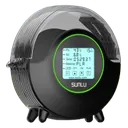
SUNLU FilaDryer S2
Brittle, moisture-damaged filament snaps inside the AMS; drying it keeps strands flexible and feeding.
Affiliate links. We may earn a small commission at no extra cost to you.
AMS feeding and jam errors
If Bambu Handy or Bambu Studio shows one of these HMS codes, it maps to the problem on this page. Each code links to Bambu's official step-by-step fix; come back here if the official steps don't solve it.
HMS_0700-0100-0002-0002– AMS assist motor overloaded, filament tangled or stuck, official fixHMS_0700-0200-0002-0003– AMS filament odometer speed signal abnormal (loose odometer cable or faulty odometer; unloading can fail), official fixHMS_0700-2000-0002-0003– Filament may be broken inside the AMS, official fixHMS_0700-7000-0002-0002– Failed to feed filament into the toolhead, official fixHMS_0700-7000-0002-0004– Failed to pull filament back from the toolhead, official fixHMS_1200-6000-0002-0001– AMS lite (A series): filament tangled or stuck, official fix